Fallback Prices

A New Condition for Dynamic Pricing Rules

Keep your automated pricing rules running by capping out-of-bounds prices with defined minimum and maximum limits, so rules no longer stop when a calculated price falls outside your range.

What's New

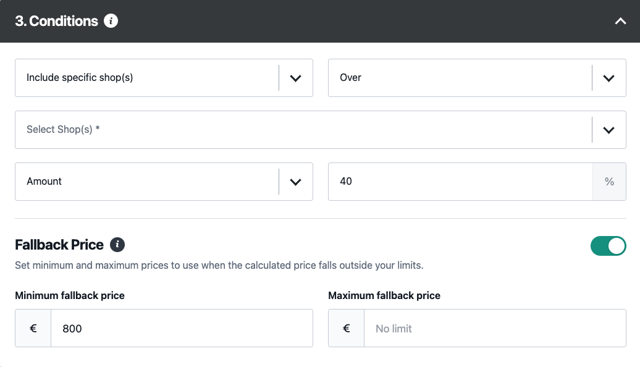
A new Fallback Price toggle is now available directly inside the Conditions step of any Dynamic Pricing rule, giving you a safety net for prices that land outside your defined range.

  • Turn on Fallback Price from the Conditions step of any new or existing Dynamic Pricing rule.
  • Set a Minimum Fallback Price and a Maximum Fallback Price (or leave the maximum as No Limit) to define your safe pricing range.
  • Below Minimum Limit: the rule automatically applies your Minimum Fallback Price instead of stopping.
  • Above Maximum Limit: the rule automatically applies your Maximum Fallback Price instead of stopping.
  • Within Limits: the rule applies the calculated price as normal, with no change in behavior.

Why It Matters

  • Previously, prices calculated outside your limits stopped the rule completely, leaving products unpriced until manually reviewed. Fallback Price keeps rules running automatically.
  • Clear minimum and maximum boundaries protect margins on the low end and prevent overpricing on the high end, without daily manual intervention.
  • Fewer paused rules means fewer manual price checks and faster reaction to market changes, especially valuable heading into the busy Q4 season.
  • Existing rules default to OFF, so you can adopt Fallback Price at your own pace with zero risk to your current setup.

Notes

To activate, go to Dynamic Pricing → Create/Edit Rule → Conditions and turn on Fallback Price. All existing pricing rules default to OFF, so your current setup won't change until you turn this on.

Monitor any major Sales Channel
in any country !

Missing an important marketplace?
Send us your request to add it!